Local Vault Mode
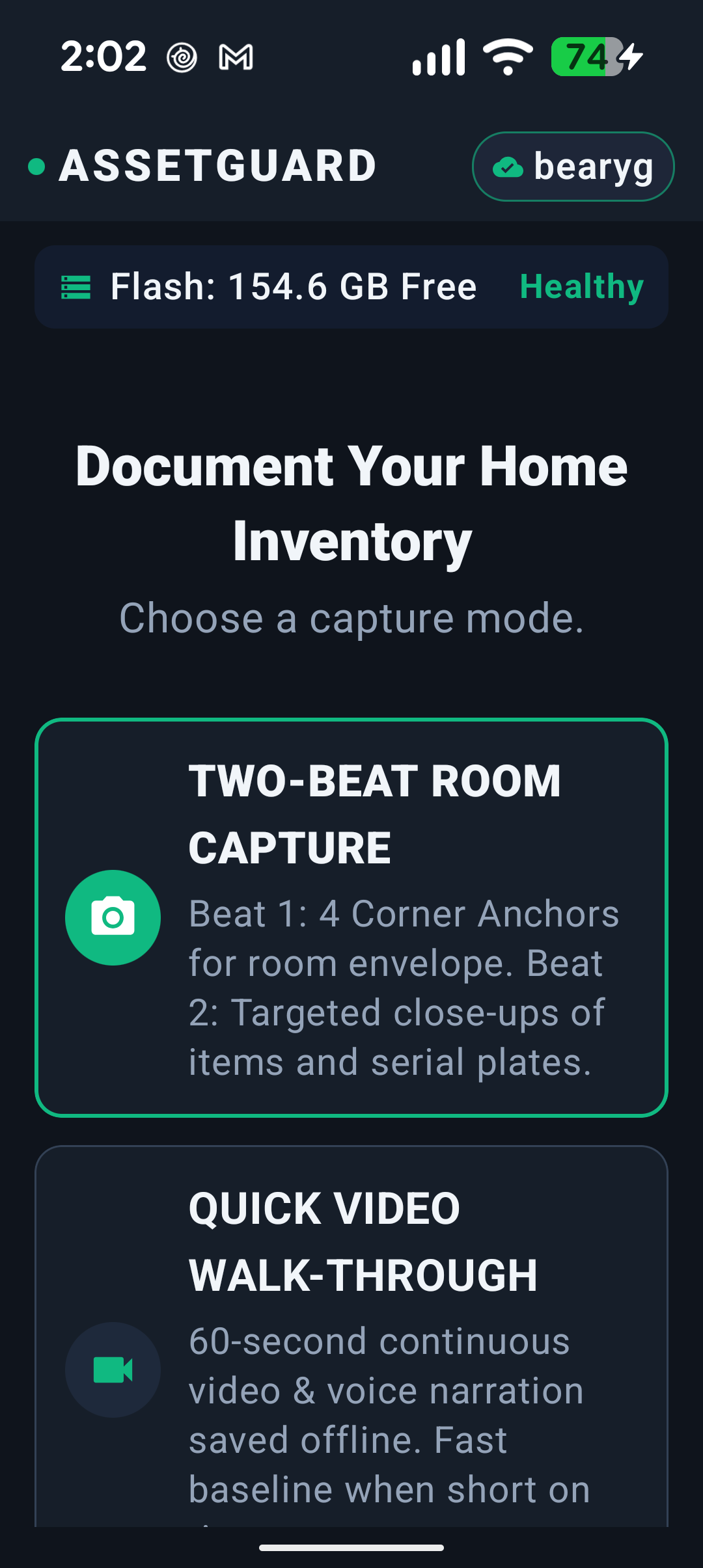
When you open AssetGuard without signing in (or without internet), the status pill truthfully displays Local Vault alongside your free flash space (Flash: ... GB Free). You can capture immediately.
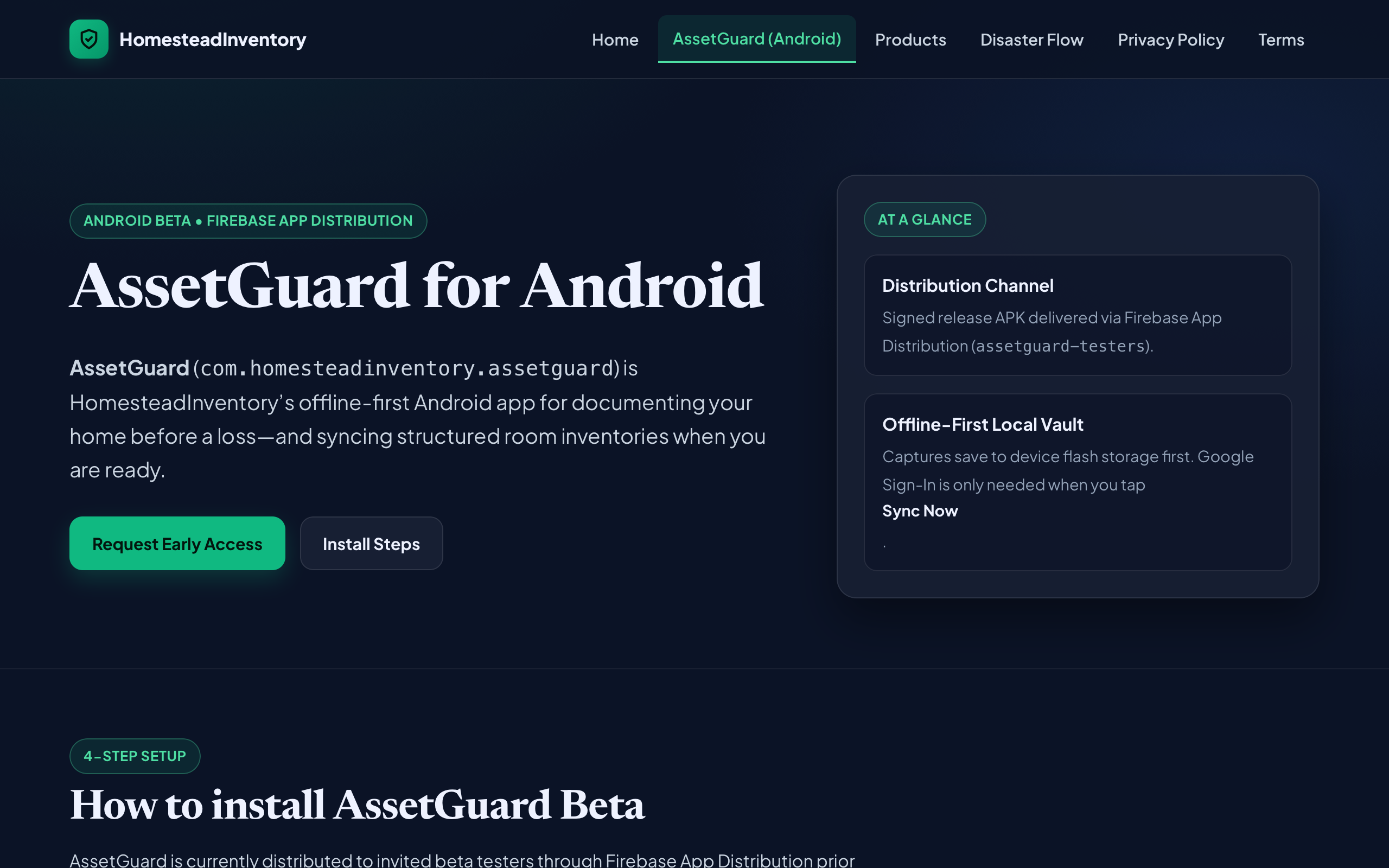
AssetGuard (com.homesteadinventory.assetguard) is HomesteadInventory’s offline-first Android app for documenting your home before a loss—saving captures to your Local Vault first and turning them into structured room inventories when you sync.
A narrated 1080p walkthrough of offline Local Vault capture, Two-Beat Room Capture, Quick Video Walk-Through, and syncing to your Google Drive.
AssetGuard is currently available to invited Android beta testers via Firebase App Distribution (native iOS TestFlight is on our post-launch roadmap).
When you open AssetGuard without signing in (or without internet), the status pill truthfully displays Local Vault alongside your free flash space (Flash: ... GB Free). You can capture immediately.
When you are back on Wi-Fi, tap Sign in with Google (Android Credential Manager) and tap Sync Now to upload queued rooms for AI itemization.
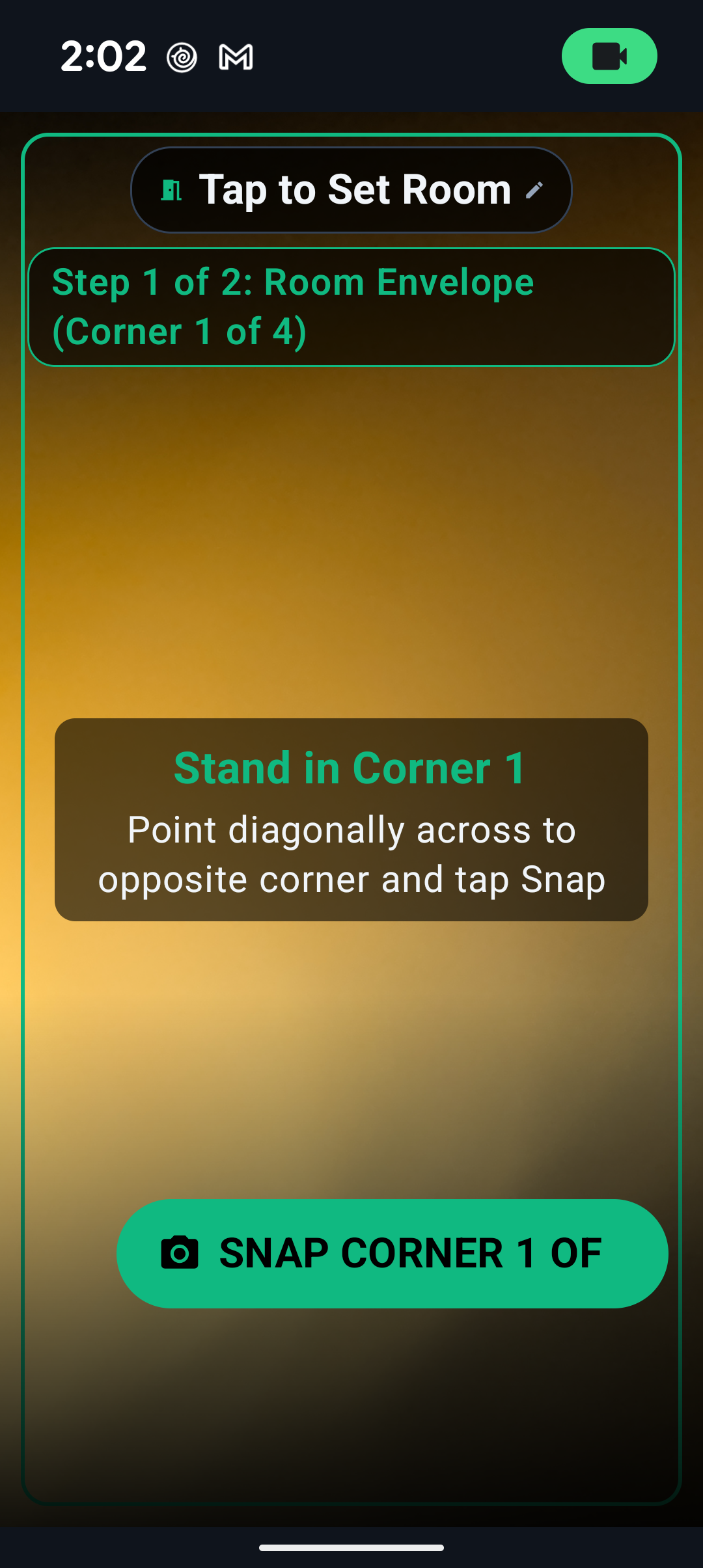
Best for calm weekend documentation, room by room.
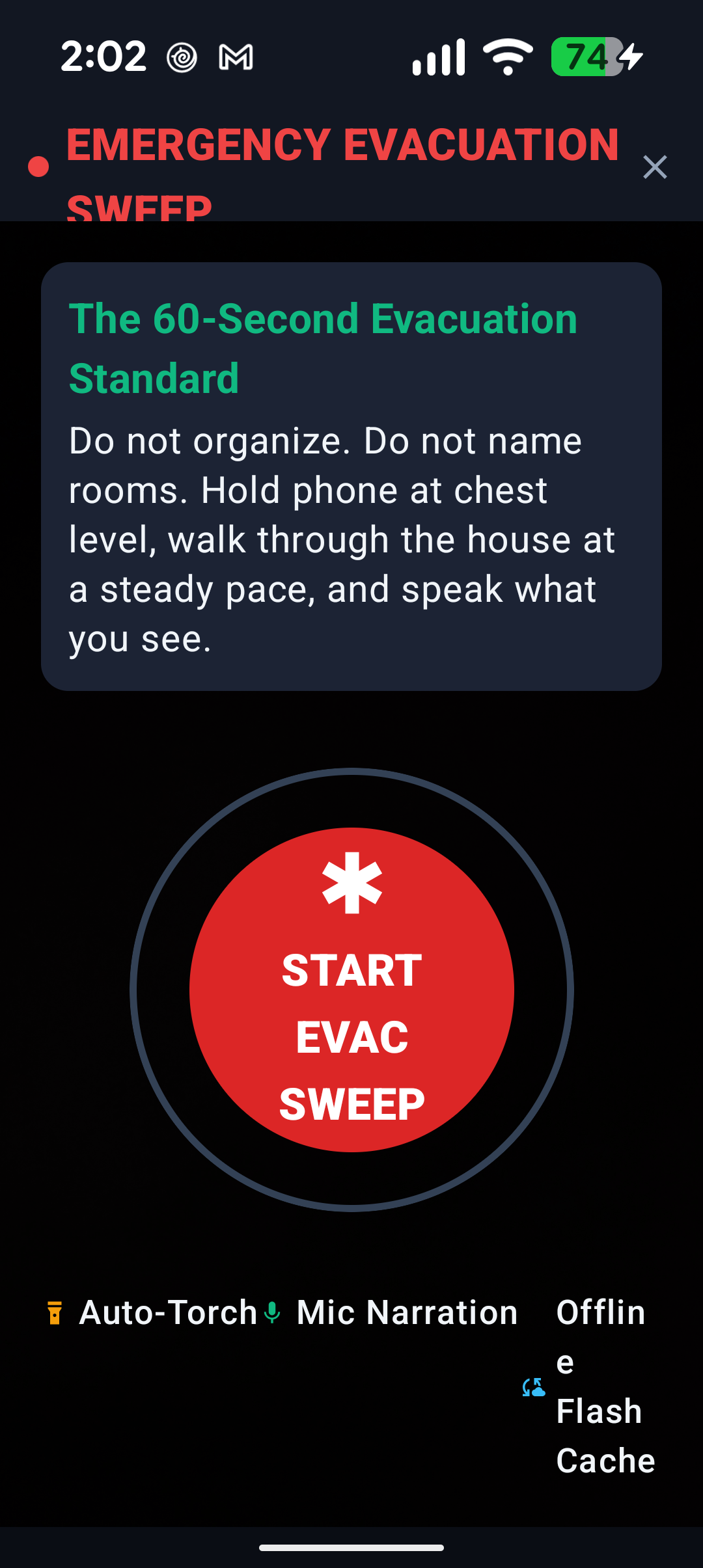
Best when you want to document your entire home in 5–10 minutes or need to move fast.
evac_sweep.mp4) straight to local flash storage.Walk through these areas at least once a year—and after major purchases or renovations.
| Permission / Issue | Explanation & Fix |
|---|---|
Camera (CAMERA) |
Required for Two-Beat Room Capture and Quick Video Walk-Through. |
Microphone (RECORD_AUDIO) |
Records your spoken item narration during Quick Video Walk-Through. |
| “Local Vault” warning on Sync | Tap Sign in with Google first; Sync Now requires an authenticated Google session. |
| Upload paused or slow | Your captures remain safely in local flash storage. Connect to Wi-Fi and tap Sync Now again. |
| Low storage warning | Check the Flash: ... GB Free readout on the home screen and free space before long video sweeps. |